
How to Build a PDF Viewer in Vue.js with PDF.js + AI, vue-pdf-embed, @tato30/vue-pdf, and Vue PDF Viewer (2026)
Four realistic ways to build a PDF viewer in Vue 3 in 2026, from vibe-coding with Cursor to dropping in a complete component. With a decision framework at the end.

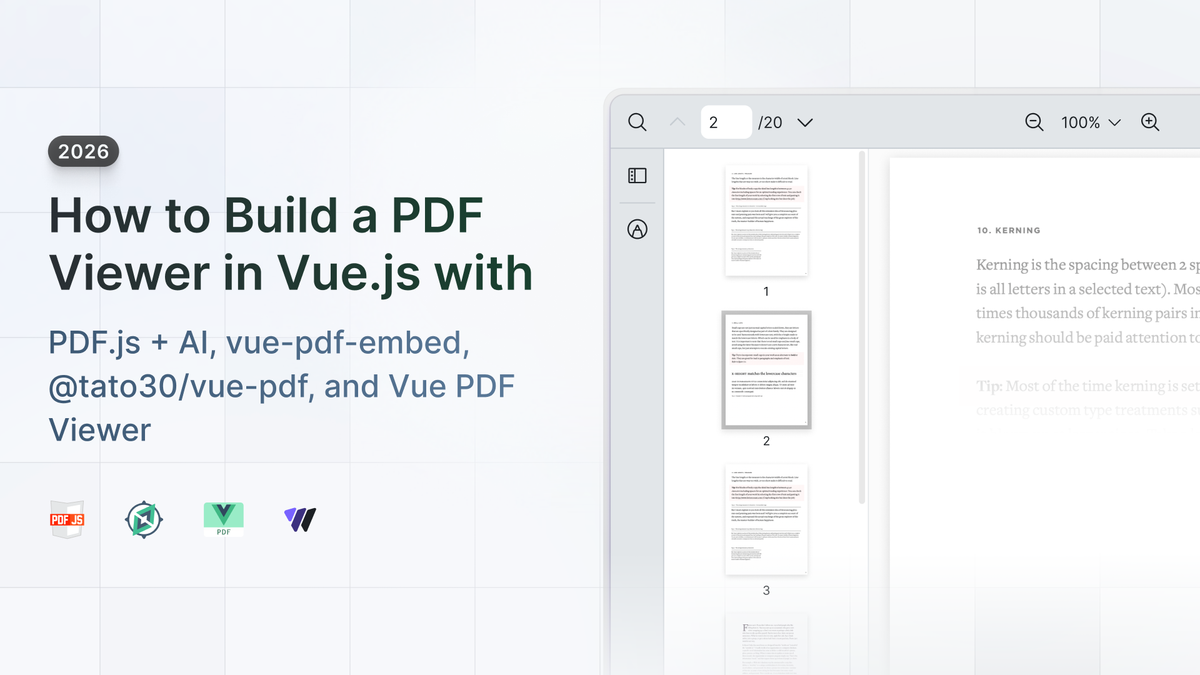
About three weeks ago, I reread the early 2024 version of this comparison I wrote on this blog. The vue3-pdf-app section already needs a strikethrough. That library hasn't shipped a meaningful release since 2023. The vue-pdf row, marked "Vue 2 only," is fully archaic now. There's no mention of AI coding assistants anywhere, because in early 2024 scaffolding a Vue component in Cursor in twenty seconds wasn't as common. Most other comparison articles in search results haven't caught up either: they still cite Pdfvuer, vue3-pdf-app, and the long-abandoned vue-pdf (FranckFreiburger).
So I rebuilt the comparison. Over the next two and a half weeks, I built the same Vue 3 PDF viewer four different ways: from scratch with PDF.js (with Cursor riding shotgun), dropped in with vue-pdf-embed, dropped in with @tato30/vue-pdf, and assembled with Vue PDF Viewer (which I help build). The fastest path took a few hours. The slowest took more than a week and still didn't ship search across pages.
Yes, the names are genuinely confusing, Vue PDF Viewer included. I'm not helping.
Each section below has an inline snippet, a sandbox link, and the catch. At the end there's a feature table and a decision framework you can hand to a tech lead.
A couple of options I'm leaving out on purpose. vue3-pdf-app gets a passing mention but isn't a real choice in 2026. Low downloads, minimal maintenance, and superseded by the libraries covered here.
EmbedPDF takes a different architectural path entirely, PDFium via WebAssembly instead of PDF.js, so it deserves its own treatment in a separate piece.
The 4 PDF viewer options at a glance
Before any code, here's the highest-level view.
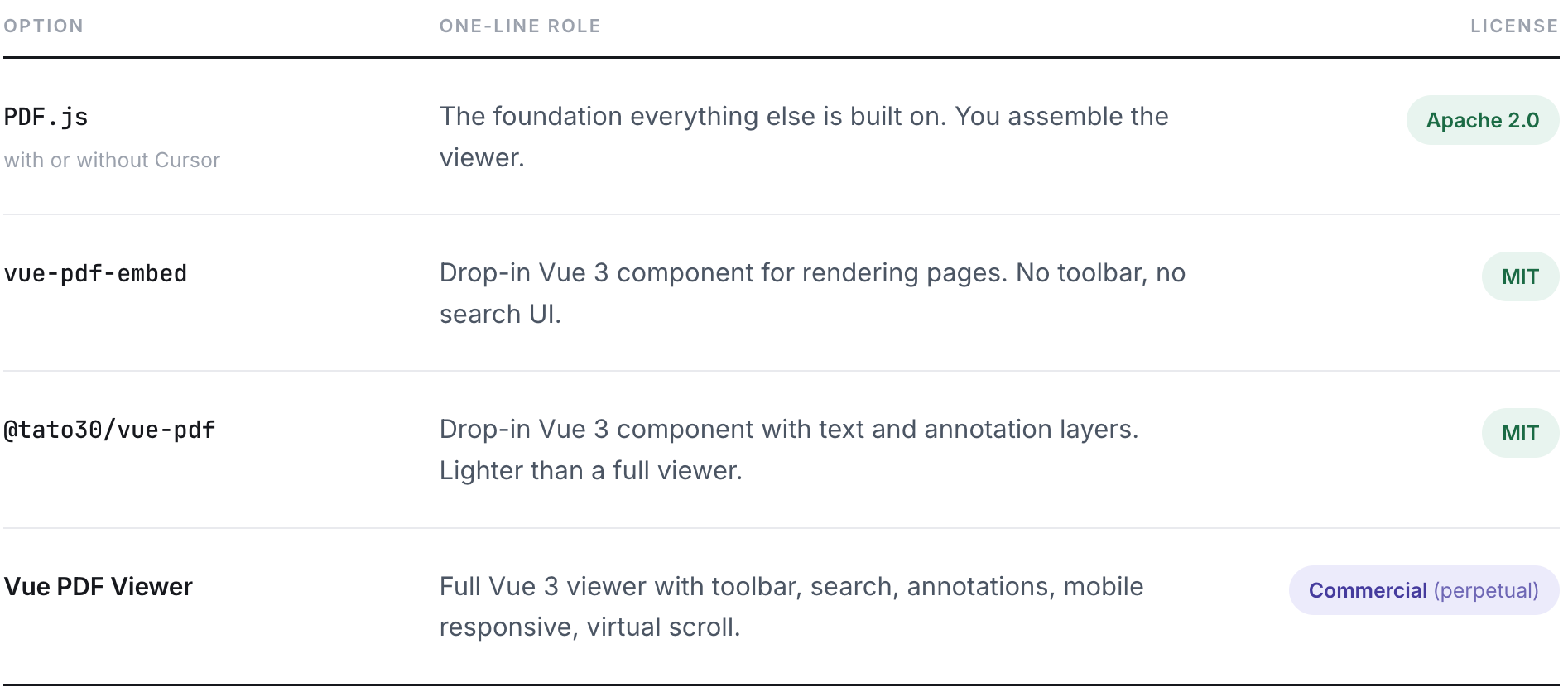
Which one fits depends on what you're building. A static report viewer in an internal tool has different requirements than a contract review app with annotations. That's the lens I'll use in the comparison at the end.
How we'll evaluate them
I'll judge each option on eight things that matter when you're actually building this:
- Feature completeness. What you get on day one (toolbar, search, annotations, navigation, print/download).
- Maintenance posture. Recent commits, release cadence, npm download trend.
- Vue 3 compat and API style. Does it work in Vue 3 out of the box, and does its API surface match your project's style? Some libraries lean Composition API (composables like
usePDF); others are component-only and API-agnostic. - Licensing tolerance. MIT vs. Apache vs. commercial, and whether your project can accept a paid license.
- Time-to-ship. How long from
npm installto a working viewer your PM would accept. - Documentation. Are the docs Vue-specific and current with worked examples, or do you piece things together from PDF.js's general JavaScript API reference, READMEs, and source?
- Support model. Community-based (GitHub issues, Discussions, Stack Overflow) or commercial (paid channel, dedicated point of contact). Different teams need different things.
All four options work with Vite. Build tooling isn't the constraint anymore.
Versions tested for this comparison: PDF.js verison 5, vue-pdf-embed [v2.1.5], @tato30/vue-pdf [v2.1.0], Vue PDF Viewer [v4.2.0]. All current as of June 2026.
Building it yourself with PDF.js (with or without AI assistance)
PDF.js is Mozilla's open-source PDF renderer. It's what the official Firefox viewer uses, and it's the rendering engine under every other Vue PDF library on this list.
License is Apache 2.0, free for commercial use. It has the broadest community of any PDF tool in JavaScript.
In 2026, the typical "I'll build my own" workflow looks like this. Open Cursor, prompt the agent to scaffold a Vue 3 component that loads a PDF and renders pages with pdfjs-dist, accept the scaffold, then start fixing what the demo skipped. GitHub Copilot fills in lines as you go. v0, Bolt, and Lovable offer similar scaffolding from a browser if you prefer that workflow. Pure hand-written DIY is the exception now, not the rule.
Whatever wrote the code, you end up owning the same pieces: worker configuration (the pdfjs.GlobalWorkerOptions.workerSrc dance), the getDocument + render loop on a canvas, pagination state, navigation chrome (prev/next, page indicator, zoom), and a toolbar if you want one.
On June 17, 2026, I tested Cursor-assisted (Composer 2.5 model) PDF.js scaffold in a fresh Vue 3 + Vite project. The prompt was: "Scaffold a Vue 3 single-file component with Composition API that loads a PDF from /sample.pdf and renders the first page with pdfjs-dist." Cursor generated a minimal component that configured the PDF.js worker, loaded /sample.pdf, fetched page 1, created a viewport at 1.5x scale, resized a canvas, and rendered the page onto it.
PDF.js Vue 3 scaffold
<script setup>
import { ref, onMounted } from 'vue';
import * as pdfjs from 'pdfjs-dist';
import workerSrc from 'pdfjs-dist/build/pdf.worker.mjs?url';

pdfjs.GlobalWorkerOptions.workerSrc = workerSrc;
const canvasRef = ref(null);

onMounted(async () => {
  const pdf = await pdfjs.getDocument('/blog/sample.pdf').promise;
  const page = await pdf.getPage(1);
  const viewport = page.getViewport({ scale: 1.5 });
  const ctx = canvasRef.value.getContext('2d');
  canvasRef.value.width = viewport.width;
  canvasRef.value.height = viewport.height;
  await page.render({ canvasContext: ctx, viewport }).promise;
});
</script>

<template>
  <canvas ref="canvasRef" />
</template>

Code sample: PDF.js Vue 3 scaffold
For the second pass, I asked Cursor for something closer to a real viewer rather than a one-page render demo. The prompt was:
"Create a Vue 3 component using pdfjs-dist to load /sample.pdf and render pages on a canvas. Add previous/next page navigation with a page counter, zoom in/out controls, search, a text layer for copy-paste, loading state, status messages, and error handling."
This produced a more complete demo with navigation, zoom, page search, a text layer, and basic loading/error states. It was still not production-ready: no virtual scrolling, no mobile gestures, and only limited search/text-layer behavior.
PDF.js Vue 3 with AI assistance

Code sample: PDF.js Vue 3 with AI assistance
Either way, it's still the demo version of a PDF viewer. Five things break almost every PDF.js-on-Vue project I've reviewed, and they break the same way whether Cursor wrote the code or a developer did.
1. Virtual scrolling and lazy page loading. Render every page on load and your 200-page PDF eats memory until the tab dies. Cursor's first answer almost never wires up an IntersectionObserver, a windowed render queue, or page-height estimation with a buffer window.
2. Mobile pinch-to-zoom and swipe gestures. Touch event handling for pinch is fiddly. Most AI-scaffolded code uses CSS transforms that look right on desktop and break the canvas resolution on retina mobile. The fix is re-rendering at the correct scale with devicePixelRatio, not scaling a bitmap with CSS.
3. Search across the whole document, not just the visible page. PDF.js exposes getTextContent per page, but assembling a cross-document search index, highlighting matches, jumping to the next/prev word, case-insensitive, and scrolling to them takes real code.
4. Print fidelity across browsers. PDF.js has no built-in print function, so you build one. Chrome, Safari, and Firefox each render print previews differently, and printing the on-screen canvas gives you a blurry bitmap. A sharp print means re-rendering from the original PDF data at print resolution, not capturing what's on screen.
5. Text selection and copy-paste. The default scaffold renders a canvas without a text layer, so nothing on screen is selectable. A second iteration may add a text layer for the current page, but cross-page selection, search highlighting on the text layer, and reliable copy from PDFs with odd font embedding or layout are still DIY.
A second iteration usually adds navigation, zoom, a text layer, and page-scoped search. Closer, but still not the product. Fit-to-width, fit-to-page, rotation, a thumbnail sidebar, and download are each small on their own, but together they're days of work even with AI. Accessibility is its own pass: a canvas has no semantic structure, a text layer helps the mouse but not screen readers, and keyboard navigation and toolbar focus don't exist until you build them.
Cursor can absolutely build a production PDF viewer in Vue. The question is how many iteration cycles before the edge cases stop firing, and from the projects I've seen it's a lot more than the scaffold suggests. Whether Cursor scaffolds it or you write it by hand, you own these challenges, and they're harder than they look from the demo.
Docs and support match the DIY shape. Mozilla's PDF.js API reference is extensive but JSDoc-style and written for general JavaScript, not Vue. Examples need adapting to Vue, and real-world patterns sometimes come from the source or GitHub issues alongside the docs. Support is community-only: GitHub issues on mozilla/pdf.js, Stack Overflow, and whatever you've collected in your own bookmarks.
When DIY makes sense: You have a narrow requirement (one PDF format, one device class, no annotations, no search), you have time, and you're fine maintaining the viewer for the life of the project.
When it doesn't: Anything past "render the page" becomes significant work, sometimes weeks of it, even with AI assistance.
This is also why the Vue-specific libraries below exist. Without PDF.js, there would be no Vue PDF Viewer, no vue-pdf-embed, no @tato30/vue-pdf. Each one wraps PDF.js so Vue developers can skip the worker-config-and-rendering-loop work and focus on their actual product.
Drop-in PDF rendering with vue-pdf-embed
vue-pdf-embed is the lightweight default for Vue 3 PDF rendering, published by hrynko on npm.
Not to be confused with vue-pdf (FranckFreiburger), which is Vue 2 only and abandoned since 2021.
MIT license. ~170K weekly npm downloads, ~1K GitHub stars. Latest release v2.1.4, March 2026.
It renders the entire PDF as a single scrollable list of pages. No per-page control, no paginator to wire up: mount the component, point it at a source, and every page renders. If your job is "show this PDF inline and let the user scroll through it," this is the shortest path. The next section's @tato30/vue-pdf takes the opposite approach, per-page control via usePDF, which is the real choice in this tier.
<script setup>
import VuePdfEmbed from 'vue-pdf-embed'
</script>

<template>
  <VuePdfEmbed source="/blog/sample.pdf" />
</template>
That's the whole integration for read-and-scroll. Worker config is handled internally, and pages render automatically (add the text-layer and annotation-layer props when you want selectable text and links). What you don't get is a viewer shell, so the first thing most apps reach for is print and download.
Custom: print and download. The library does not ship toolbar buttons, but it exposes download and print on the component instance. The easiest customization path in this tier is a template ref and two buttons you own, with no extra dependency. The README documents both methods in its public API table.
<script setup lang="ts">
import { ref } from 'vue'
import VuePdfEmbed from 'vue-pdf-embed'

// Optional Styles. Use for enable `text-layer` and `annotation-layer`
import 'vue-pdf-embed/dist/styles/annotationLayer.css';
import 'vue-pdf-embed/dist/styles/textLayer.css';

const pdfRef = ref<InstanceType<typeof VuePdfEmbed> | null>(null)
const source = '/blog/sample.pdf'
</script>

<template>
  <div>
    <button type="button" @click="pdfRef?.download('document.pdf')">Download</button>
    <button type="button" @click="pdfRef?.print()">Print</button>
    <VuePdfEmbed annotation-layer text-layer ref="pdfRef" :source="source" />
  </div>
</template>
vue-pdf-embed - Download and Print Example
What it doesn't give you out of the box: a toolbar, search UI, navigation chrome, or print/download controls. Annotation creation tools, mobile pinch gestures, and virtual scrolling are also on you. The library renders annotations that exist in the PDF, but it doesn't let users create new ones. By design, vue-pdf-embed focuses on rendering, not on being a finished viewer shell.
Docs live in the README: substantive, with full props/events/slots/methods tables, a Common Issues section covering SSR and web-worker setup, and three JSFiddle demos, but no separate docs site. Support is community: GitHub Issues (a small open backlog suggests an attentive maintainer) and GitHub Discussions. One primary maintainer (hrynko) with 25 contributors over the project's life.
When it fits: internal tools, documentation viewers, and simple report displays where the PDF is the content, users can read and scroll, and you only need a few extra actions such as print or download wired up with a ref and buttons.
When it doesn't: anything that needs a full toolbar, annotation creation, or full-text search across the document shipped without you building it.
Per-page control with @tato30/vue-pdf
@tato30/vue-pdf sits in the same lightweight tier as vue-pdf-embed, with a slightly different shape. It also wraps PDF.js and ships text and annotation layers per page.
MIT license. ~32K weekly npm downloads, ~685 GitHub stars. Active.
The main difference from vue-pdf-embed is API style. @tato30/vue-pdf gives you a <VuePDF> component for each page plus a usePDF composable, which lets you control which page renders. The composable also exposes pages once the document loads, so you can wire previous or next navigation without diving into PDF.js APIs. That makes it easier to build a custom paginator or a viewer that shows one page at a time.
<script setup>
import { ref } from 'vue'
import { VuePDF, usePDF } from '@tato30/vue-pdf'

const { pdf } = usePDF('/blog/sample.pdf')
const page = ref(1)
</script>

<template>
  <VuePDF :pdf="pdf" :page="page" text-layer />
</template>
That renders a single page, controlled by the page ref. Worker config is handled for you, and a single page with no way to reach page 2 isn't a viewer yet (add the text-layer and annotation-layer props when you want selectable text and links). Page navigation is the first thing most apps add.
Custom: Paginator. The library does not ship navigation chrome, but usePDF returns pages alongside pdf, so a prev or next bar is a few lines of template you own:
<script setup lang="ts">
import { ref } from 'vue'
import { VuePDF, usePDF } from '@tato30/vue-pdf'

// Optional Styles. Use for enable `text-layer` and `annotation-layer`
import '@tato30/vue-pdf/style.css';

const source = '/blog/sample.pdf'
const { pdf, pages } = usePDF(source)
const page = ref(1)
</script>

<template>
  <div>
    <div>
      <button type="button" :disabled="page <= 1" @click="page--">Previous</button>
      <span>Page {{ page }} of {{ pages || '…' }}</span>
      <button type="button" :disabled="!pages || page >= pages" @click="page++">Next</button>
    </div>
    <VuePDF text-layer annotation-layer :pdf="pdf" :page="page" />
  </div>
</template>
Like vue-pdf-embed, no toolbar, no search UI, no print/download buttons, no annotation creation. The text layer is there when you enable it, so you can build search on top of it if you want, but you're writing the matching logic and the highlight rendering yourself. Navigation is the main thing you wire yourself, as in the paginator example above.
Docs are a dedicated site at tato30.github.io/vue-pdf, with worked examples for the text layer, annotation layer, and the editor layer (which exposes PDF.js's FreeText, Highlight, Ink, and Stamp annotation primitives, usable but not a full annotation UI). Support is community: GitHub Issues and Discussions, one maintainer (TaTo30).
When it fits: Internal tools, documentation viewers, and report displays where users step through pages one at a time, and you only need navigation chrome such as a paginator wired with pages from usePDF.
When it doesn't: Anything that needs a full toolbar, annotation creation, or full-text search across the document shipped without you building it.
A complete Vue 3 component with Vue PDF Viewer
Vue PDF Viewer is the option that ships the toolbar and the rest of the viewer UI in the box. It's the commercial Vue PDF component.
Not to be confused with vue-pdf (FranckFreiburger, Vue 2 only) or vue-pdf-embed (hrynko, the lightweight render-only option above).
Perpetual license. Purpose-built for Vue 3 and Nuxt. Powered by PDF.js under the hood.
What ships out of the box: a complete viewer with toolbar, search, annotations, navigation with thumbnails, Form Layers for AcroForm and XFA, virtual scroll, and mobile responsiveness. Plus an Instance API for programmatic control.
Full feature list and roadmap in the Vue PDF Viewer documentation.
Vue PDF Viewer minimal setup
<script setup>
  import { VPdfViewer } from '@vue-pdf-viewer/viewer';
  import VPdfAnnotationPlugin from '@vue-pdf-viewer/annotation';
</script>

<template>
  <VPdfViewer src="/blog/sample.pdf" :plugins="[VPdfAnnotationPlugin()]" />
</template>

Code sample: Vue PDF Viewer minimal setup
That's a full viewer. Toolbar, page navigation, zoom, print, download, search, mobile responsive layout. Turning on annotations is one prop: :plugins="[VPdfAnnotationPlugin()]". A few lines of Vue.
The library is used in production by developers at companies across 12+ industries including finance, healthcare, education, legal, and manufacturing.
Docs are at docs.vue-pdf-viewer.dev with worked examples per feature and an Instance API reference. Support is commercial. License holders have a dedicated point of contact rather than community-only support.
Trade-off: It's a commercial library. If your project can't take on a paid license, the lightweight options or DIY PDF.js are the right call. Otherwise, you trade money for the weeks of build-and-debug time the other options demand, and Vue PDF Viewer delivers a complete viewer UI with search and annotations from day one.
Full feature comparison and how to choose
Here's the full picture across the four options.
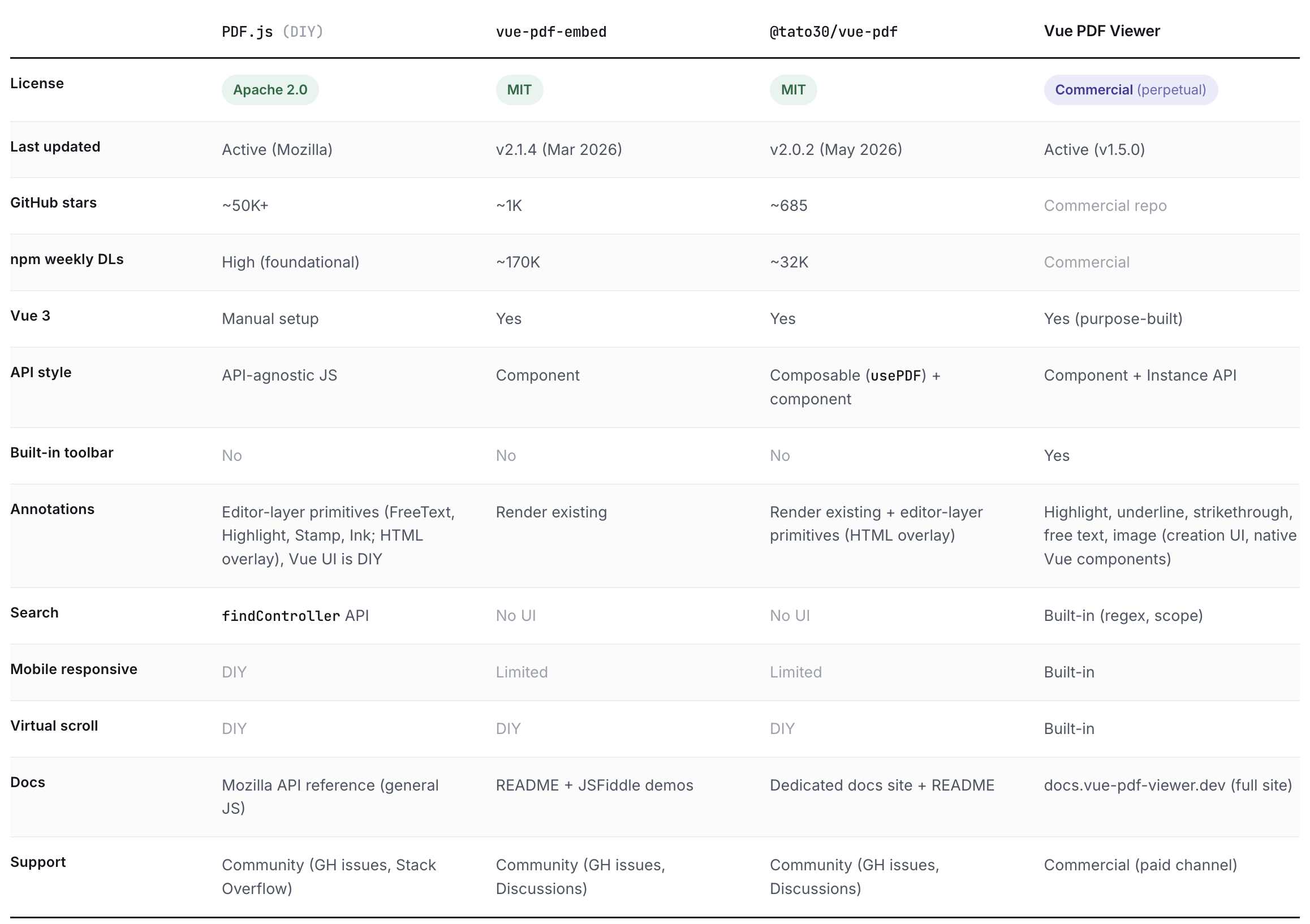
Stats verified May 2026. GitHub stars, weekly downloads, and release versions shift; re-check before relying on the table for a decision.
A few decision shortcuts:
Basic rendering, no UI required, MIT license, ship today. vue-pdf-embed if you want zero config. @tato30/vue-pdf if you want per-page control.
Full control over UI, willing to own the foundation work (AI can help, but you still own the edge cases). PDF.js. Plan for weeks of work past the initial scaffold.
Full features (toolbar, search, annotations, mobile, virtual scroll) shipped today, commercial license is fine. Vue PDF Viewer. This is the time-to-ship answer. Annotations activate with a single prop, and the toolbar and search are already there.
The common mistake I see in code reviews: People pick the lightweight rendering library because the README looks short. Then they spend two months building the toolbar, search, and mobile layout the product spec asked for in the first place.
The second mistake: People pick PDF.js because it's free, underestimate maintenance, and a year later the viewer is the most fragile part of the codebase. Pick on the requirement, not on the install command.
Wrapping up
Two and a half weeks of building four viewers taught me one thing I keep forgetting between iterations of this article: The install command is not the cost. The cost is whatever you have to build on top of the install command to make the viewer your PM actually asked for.
The lightweight libraries are short on day one and long on day twenty. The DIY path is the opposite. The complete component skips both shapes of work in exchange for a license fee.
There's no universal right answer. There's a right answer for your project, and the table above is meant to make picking it easier. If Vue PDF Viewer turns out to be that answer, Vue PDF Viewer library has the docs and live demos.
![6 Open-Source PDF Viewer and Annotation libraries every Vue developers should know [2025]](/blog/content/images/size/w600/2026/05/6-Open-Source-PDF-Viewer-and-Annotation-libraries----1920x1080-.png)